TL;DR: Master bulk PPC editing in Excel to save hours on Amazon ad management. This guide walks through downloading, editing, and re-uploading PPC campaigns using templates and best practices, with tools from SellerSprite to prevent errors and boost efficiency.
Key Takeaways
- You can download Amazon PPC campaign data into Excel for bulk editing, enabling faster optimization across multiple campaigns.
- SellerSprite’s Amazon PPC Optimization tools integrate with Excel workflows to streamline keyword and bid adjustments.
- Common errors like incorrect formatting, mismatched campaign IDs, or invalid bid values can cause upload failures—always validate before submission.
- Use Amazon seller Excel templates or SellerSprite-generated files to maintain proper structure and field alignment when re-uploading data.
- You can upload edited PPC data back to Amazon in bulk, saving time and ensuring consistency across large-scale ad operations.
Table of Contents
- Why Bulk Edit PPC Campaigns in Excel?
- Step 1: Downloading Your Amazon PPC Data
- Step 2: Understanding the Excel File Structure
- Step 3: Making Bulk Edits to Campaigns, Keywords & Bids
- Step 4: Validating Your Edits Before Upload
- Step 5: Uploading Edited PPC Data Back to Amazon
- Best Amazon Seller Excel Templates for PPC
- Common Errors When Uploading PPC Files (And How to Fix Them)
- Boost Efficiency: Combine Excel with Automation Tools
- FAQ
- References
Note on marketplaces: This guide is specifically optimized for the US market.
Why Bulk Edit PPC Campaigns in Excel?
Managing Amazon Pay-Per-Click (PPC) campaigns manually one by one is not scalable. As your catalog grows—from 20 SKUs to 200—so does the complexity of maintaining profitable ads. This is where bulk operations files in Excel become essential for Amazon sellers, especially for new sellers, growing brands, and operations managers who need to optimize performance across dozens or hundreds of campaigns efficiently.
Bulk editing allows you to make sweeping changes across multiple campaigns, ad groups, keywords, and bids—all within a single spreadsheet. You can reduce CPCs on underperforming keywords, increase bids on winners, pause redundant ads, and restructure entire portfolios in minutes instead of days.
More importantly, by downloading Amazon’s native campaign reports into Excel, you gain granular control over data filtering, pivot table analysis, and conditional formatting to drive smarter PPC decisions. Whether you’re using Amazon’s Advertising Console or enhancing your workflow with tools like SellerSprite’s Amazon PPC Optimization Suite, mastering the art of editing PPC in Excel is a foundational skill for scaling your ad performance.
Step 1: Downloading Your Amazon PPC Data
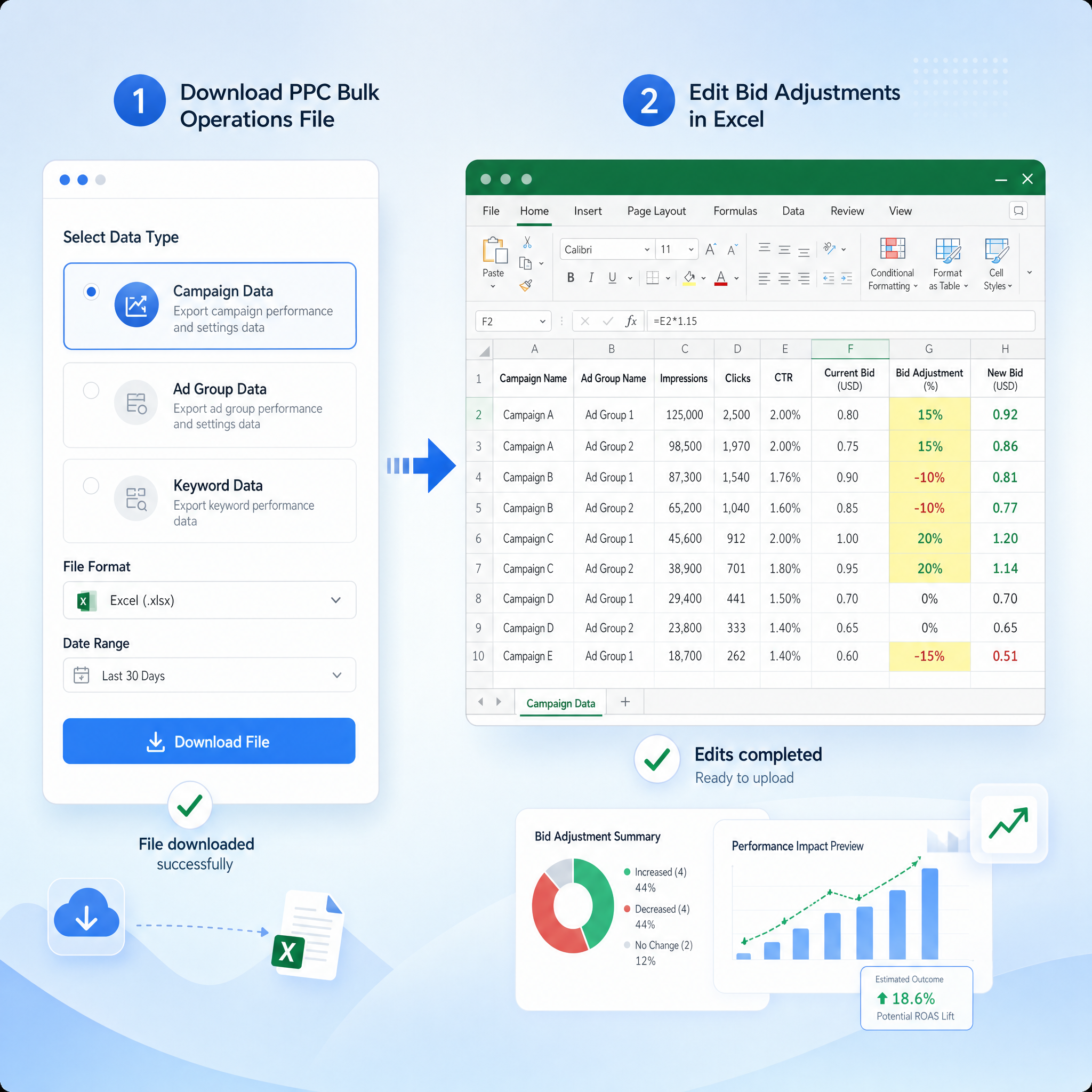
Before you can begin bulk editing, you must first export your current PPC campaign data. Amazon allows you to download campaign-level, ad group, keyword, and product targeting data through the Advertising Console.
Here’s how:
- Log in to your Amazon Advertising Console (for vendors) or Seller Central (for sellers).
- Navigate to Advertising > Campaigns.
- Select the campaigns you want to edit (or select all).
- Click the Export button located at the top right.
- Choose Export selected campaigns with keywords and product targeting.
- Set your date range and click Export.
Alternatively, you can use SellerSprite PPC Analyzer to pull enhanced campaign data with profit-aware metrics like ROAS, ACoS, and keyword search volume—offering deeper insights than Amazon’s native exports. Once exported, Amazon generates a .csv or .xlsx file containing your full campaign hierarchy.
💡 Pro Tip: Schedule regular exports (weekly or bi-weekly) so you always have the latest campaign data for analysis and optimization. Use SellerSprite’s reporting dashboard to automate this process and consolidate performance history.
Step 2: Understanding the Excel File Structure
The downloaded file contains multiple tabs, including Campaigns, Ad Groups, Keywords, and Product Targeting. Each tab represents a level in your advertising hierarchy. Understanding these relationships is crucial to avoiding errors during the bulk editing process.
Key Fields to Know:
- Campaign Name / ID: Unique identifier for each campaign. Never change the ID unless you’re uploading a new campaign.
- Ad Group Name / ID: Nested under campaigns. Used to organize product sets or themes.
- Keyword Text: The search term you’re bidding on. Must match existing keywords exactly.
- Match Type: Can be Broad, Phrase, or Exact. Capitalization matters (e.g., "Exact", not "exact").
- Bid: Your maximum cost-per-click (CPC). Changes here affect competitiveness.
- Status: Enabled, Paused, or Archived. Use "Enabled" or "Paused" only during edits.
👉 Each row corresponds to an individual entity. Editing the bid in a keyword row will update only that keyword when re-uploaded. Similarly, changing the status of an ad group will affect all keywords within it.
📘 Insight: Review the file carefully before editing. Look for inconsistencies like duplicate keyword rows, missing campaign names, or outdated bids. Clean data ensures a successful upload.
Step 3: Making Bulk Edits to Campaigns, Keywords & Bids
Now that you have a clean, well-structured file, you can begin making bulk edits. This is where Excel’s power truly shines. Below are common operations and how to execute them efficiently.
1. Adjust Keywords and Bids in Bulk
Use Excel functions like FIND, FILTER, or SORT to isolate keywords with high ACoS or low conversion rates. For example:
- Lower Bids on Low-Performing Keywords: Filter all keywords where ACoS > 40%. Reduce bids by 20% using a formula:
=BID_CELL * 0.8. - Increase Bids on Winners: Identify keywords with ROAS > 4. Increase bids by 15–25% to gain more visibility.
- Pause Irrelevant Keywords: Change the Status column to "Paused" for any keyword not converting or leaking budget.
2. Restructure Campaigns by Performance
You can consolidate underperforming campaigns or split high-volume ones into thematic clusters. For instance:
- Create a new campaign called "Branded Keywords Only" and move all brand-matched keywords into it.
- Build a Manual High-ROAS campaign by copying high-performing keywords from auto campaigns.
To do this, copy entire rows from one campaign and paste them into a new set with updated Campaign Name and IDs. Make sure the new campaign structure already exists in Amazon or will be created during upload.
3. Scale Winning Ad Sets
If you find a successful ad group, duplicate it for similar products. Select all rows belonging to that ad group, copy them, and paste below. Then update:
- Campaign name (e.g., swap "Organic Shampoo" → "Organic Conditioner")
- ASINs or SKUs
- Ad group name
This allows rapid campaign replication without rebuilding from scratch—ideal for product line extensions.
4. Apply Conditional Formatting for Visual Clarity
Highlight key insights quickly:
- Red fill for keywords with ACoS > 50%
- Green fill for ROAS > 5
- Yellow highlight for bids below $0.50
This visual layer helps you spot optimization opportunities instantly.
Step 4: Validating Your Edits Before Upload
One formatting mistake can cause the entire upload to fail. Always validate your edits before submission.
Essential Validation Checks
- Check Field Formatting: Ensure all bid values are numeric (e.g., 0.89, not $0.89 or "0.89c").
- Match Case Sensitivity: Match types must be exactly "Exact", "Phrase", or "Broad" (not lowercase).
- Verify Campaign & Ad Group IDs: If referencing existing campaigns, ensure IDs haven’t changed.
- Remove Blank Rows: Empty rows may cause parsing errors during upload.
- Confirm Status Values: Only use "Enabled", "Paused", or "Archived".
Step 5: Uploading Edited PPC Data Back to Amazon
Once your file is validated and error-free, it’s time to upload it back to Amazon.
How to Upload in Seller Central
- Go to Advertising > Campaign Manager.
- Click the Import button at the top right.
- Select Import from file.
- Browse and select your edited Excel (.xlsx or .csv) file.
- Choose the correct marketplace (US) and click Upload.
Amazon will process the file and apply your changes. Processing takes 5–15 minutes. You’ll receive a notification once completed.
✅ Success Tip: After upload, verify changes in the console. Check a few keyword bids and statuses to confirm they updated correctly.
Best Amazon Seller Excel Templates for PPC
Using a standardized template saves time and prevents format drift. While Amazon’s exported files are functional, they lack built-in formulas and dashboards.
We recommend using these enhanced templates:
1. SellerSprite Optimized PPC Template
This downloadable template includes:
- Pre-formatted columns matching Amazon’s import specs
- Automatic ACoS, ROAS, and TACoS calculators
- Bid adjustment suggestions based on performance tiers
- Dashboard tabs with charts and optimization alerts
2. Amazon’s Native Campaign Export Template
Always start with this official format. It ensures compatibility and reduces risk. Use it as the base, then add your custom formulas.
3. Custom PPC Audit Template
Based on our PPC Audit Checklist, this template helps identify:
- Ghost keywords (bidding but no impressions)
- High impression, low CTR terms
- ACoS outliers
- Missing negative keywords
Use this pre-upload to audit your bulk changes and ensure strategy alignment.
Common Errors When Uploading PPC Files (And How to Fix Them)
Even experienced sellers face upload failures. Here are the most frequent issues and how to resolve them.
1. "Invalid Bid Value" Error
📌 Cause: Text characters in bid columns (e.g., "$", "c", or spaces).
✅ Solution: Use Excel’s Find and Replace to remove non-numeric characters. Apply number formatting and ensure no formulas return text.
2. Campaign Not Found / Invalid Campaign ID
📌 Cause: Trying to edit a campaign that doesn’t exist or has been deleted.
✅ Solution: Double-check campaign IDs. If creating a new campaign, ensure the Record Type is set to "Campaign" and the status is "Enabled".
3. Mismatched Match Type
📌 Cause: Using "phrase" instead of "Phrase".
✅ Solution: Use exact casing: "Broad", "Phrase", "Exact".
4. Duplicate Keyword in Same Ad Group
📌 Cause: Accidentally copying and pasting the same keyword twice.
✅ Solution: Use Excel’s Remove Duplicates feature under the Data tab. Filter by Campaign, Ad Group, and Keyword Text.
5. File Upload Fails with No Clear Message
📌 Cause: Hidden formatting, special characters, or encoding issues (especially in CSVs).
✅ Solution: Save as .xlsx instead of .csv. Clean data using TRIM() and CLEAN() functions. Use UTF-8 encoding if exporting from third-party tools.
Boost Efficiency: Combine Excel with Automation Tools
While Excel is powerful, combining it with automation amplifies results. Manual bulk edits work for one-off optimizations—but recurring tasks like weekly bid updates or negative keyword additions demand smarter workflows.
How SellerSprite Enhances Bulk Excel Editing
- One-Click Export: Pull campaign data with profitability metrics (ROAS, ACoS, units sold) not available in Amazon’s console.
- Bulk Edit Dashboard: Make changes directly in the web interface, then export as Amazon-ready files.
- Scheduled Uploads: Automate weekly bid adjustments based on performance thresholds.
- Error Pre-Check: Validate files before they reach Amazon, reducing failed uploads.
For example, use SellerSprite’s New Product Launch Template to auto-generate manual campaigns from auto-campaign winners—then refine in Excel.
🚀 Bottom Line: Excel is the foundation. Automation is the accelerator.
FAQ
How do I bulk edit PPC campaigns in Excel for Amazon?
To bulk edit PPC campaigns in Excel for Amazon: (1) Export your campaigns from Amazon Advertising Console. (2) Open the downloaded file and make changes to bids, keywords, or status across multiple rows. (3) Validate formatting—ensure bids are numeric, match types correct, and no blank rows. (4) Import the edited file back into Amazon via the Campaign Manager's 'Import' tool. Use tools like SellerSprite to automate validation and reduce errors.
What is the best way to manage Amazon PPC ads using Excel templates?
The best way is to use a standardized, Amazon-compatible Excel template with built-in formulas for ACoS, ROAS, and bid suggestions. Start with Amazon’s native export format, then enhance it with conditional formatting, pivot tables, and dashboards. SellerSprite provides optimized templates that sync with your account and highlight optimization opportunities automatically.
Can I upload edited PPC data back to Amazon in bulk via Excel?
Yes, you can upload edited PPC data back to Amazon in bulk via Excel. After making changes in your spreadsheet, save it as .xlsx or .csv, then go to Advertising > Campaign Manager > Import. Select your file and upload. Amazon will process the changes and apply them across your campaigns. Always validate formatting first to avoid errors.
Are there free Amazon seller Excel templates for PPC?
Yes, Amazon provides free exportable templates through its Advertising Console. Additionally, SellerSprite offers enhanced free templates with built-in analytics, bid calculators, and performance dashboards. These are designed specifically for Amazon sellers and include best practices for bulk editing and campaign structuring.
How often should I update my PPC campaigns using bulk edits?
It's recommended to perform bulk edits weekly for active campaigns. High-volume sellers may benefit from bi-weekly or even daily reviews. Regular updates allow you to respond to performance shifts, adjust bids on winning keywords, and eliminate wasted spend—keeping your ACoS optimized and ROAS high.
Next Steps
- Download your current PPC campaigns from Amazon and open them in Excel.
- Use this PPC audit checklist to identify underperforming keywords and bid inefficiencies.
- Apply bulk bid adjustments and pause non-converting terms.
- Validate your file using SellerSprite’s free bulk editor tool before uploading.
References
- Amazon Advertising Console Export Guide View
- SellerSprite Amazon PPC Optimization Guide View
- How to Launch a PPC Campaign for a New Product View
By SellerSprite Success Team
The SellerSprite Success Team combines hands-on Amazon ad management experience with deep expertise in e-commerce data analytics. We’ve helped over 10,000 sellers optimize their PPC campaigns using automation, bulk operations, and ROI-driven strategies. Our guides are built on real-world testing, industry best practices, and continuous learning from thousands of active Amazon accounts.